 Badger
Your logo, ABN, GST and terms
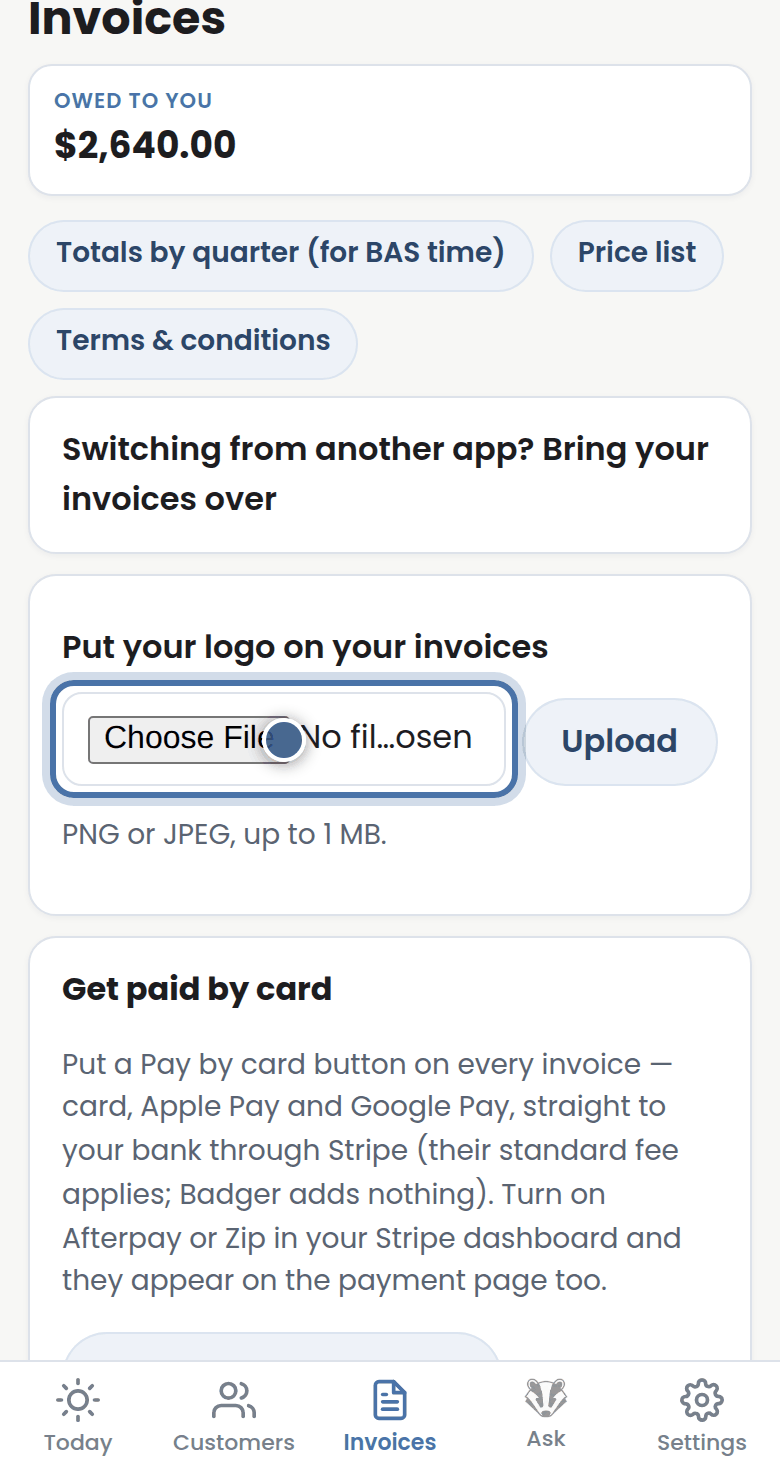
Step 1: On the Invoices tab, open Put your logo on your invoices and upload it once — every PDF carries it from then on.
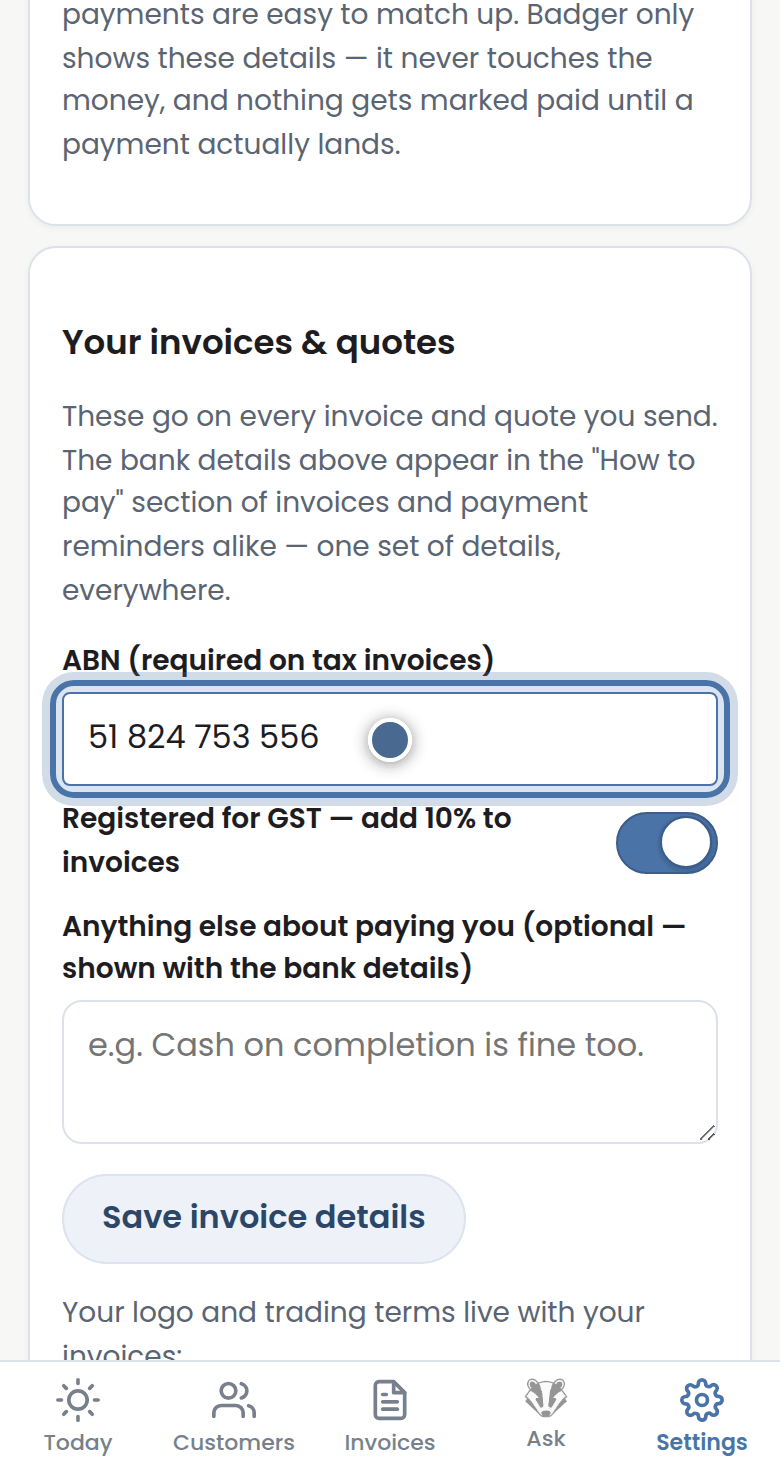
Step 2: In Settings, Your invoices & quotes holds your ABN, the GST switch, and a note that prints on every invoice.
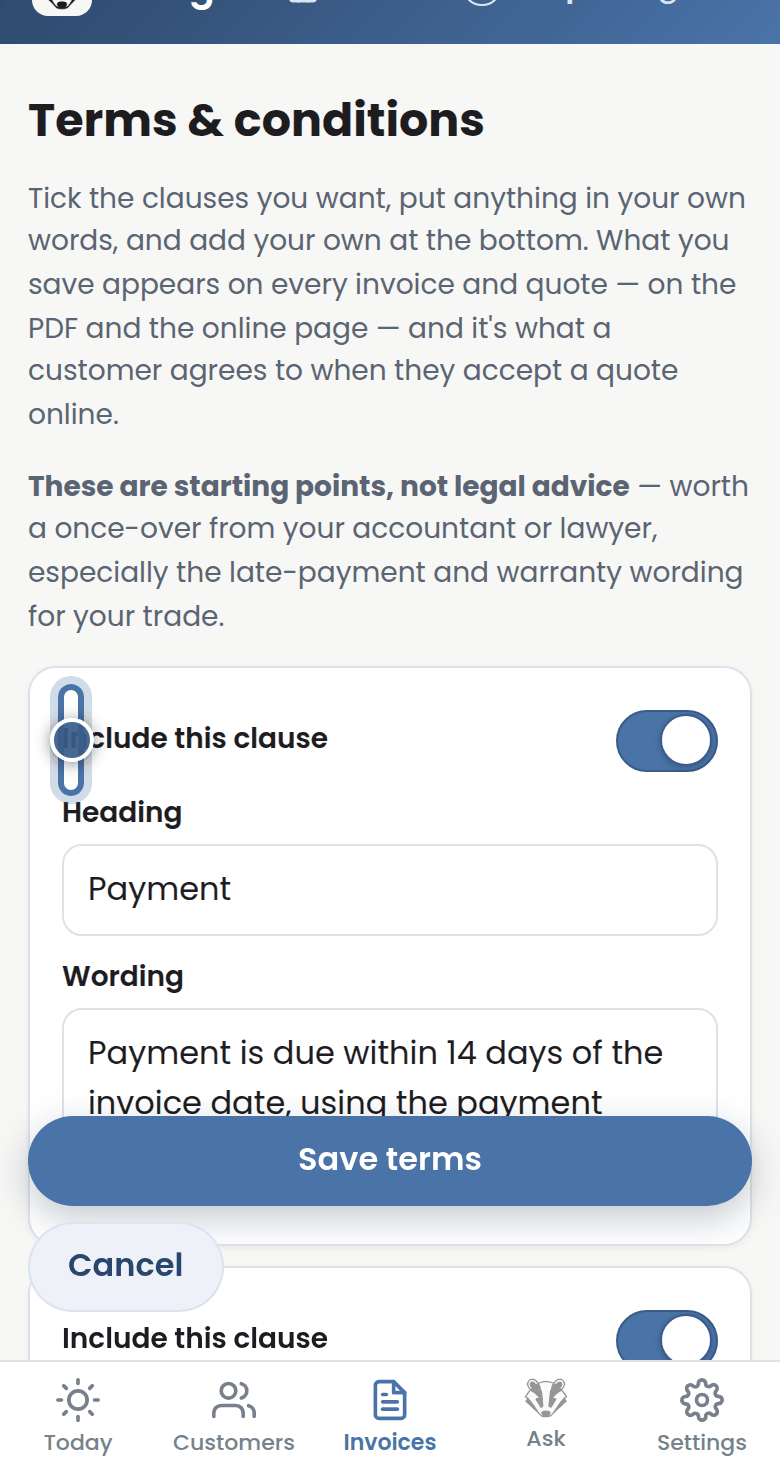
Step 3: Terms & conditions builds your fine print clause by clause — tick the clauses you want, reword anything.
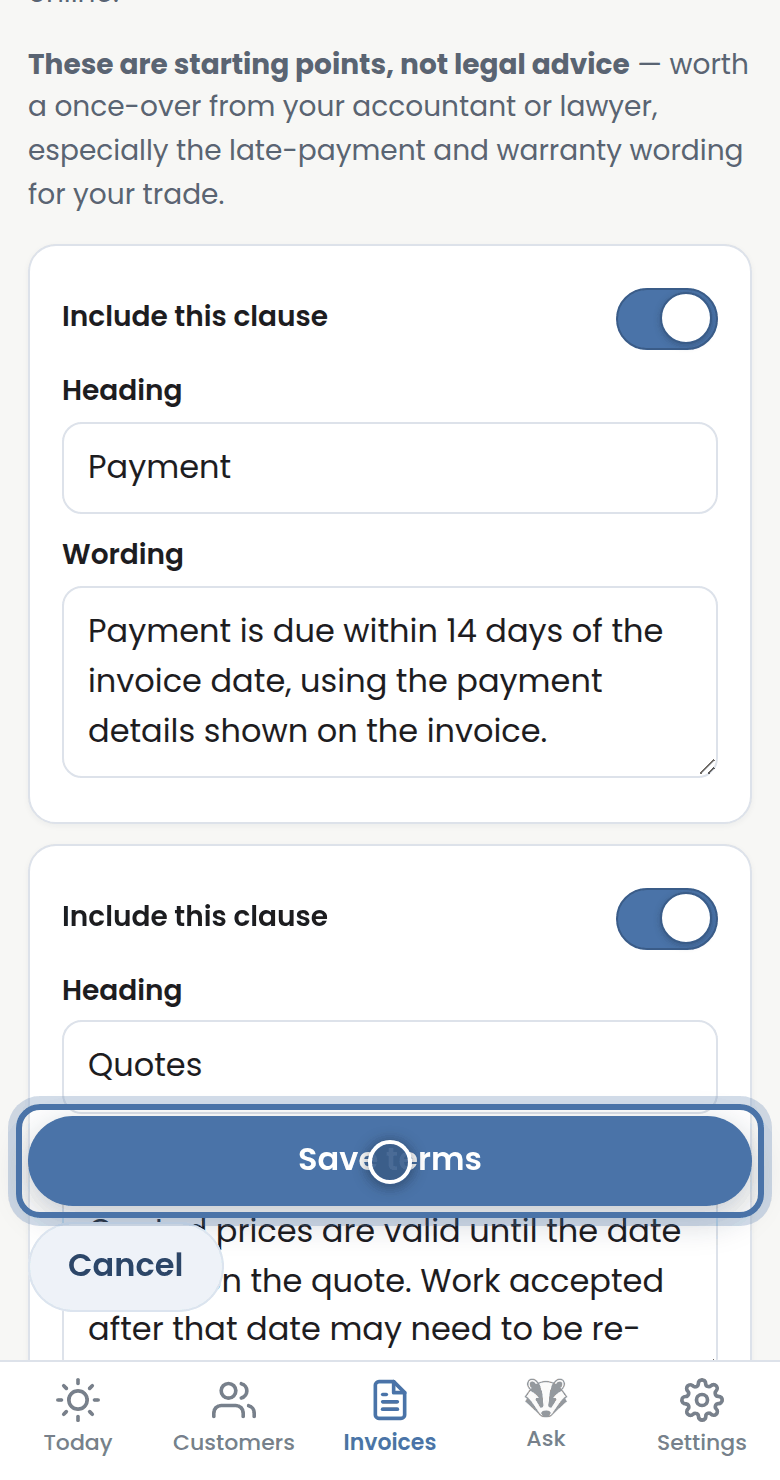
Step 4: Press Save terms and they ride along with every invoice and quote you send.
More tutorials
Getting started with Badger
The Today page
Approving from your inbox
Handling customer replies